


Page 72 - Customize-Project-Plan-by-tailoring-Smartsheet
P. 72
Customize your Project Plan
by tailoring Smartsheet
26. Visual Indicators (e.g., Traffic Lights)
26.1. Visual Indicators (e.g., Traffic Lights)
The subject is now to visualize the negative slack time via sym-
bols (e.g., red, yellow, or green bullets, or maybe also a flag).
Interestingly, Smartsheet changed recently their view about
symbols and if you look now for a flag, it's gone from the symbol
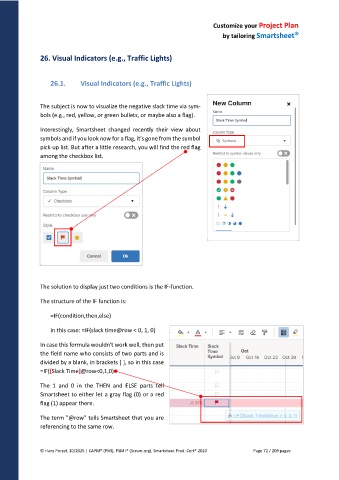
pick-up list. But after a little research, you will find the red flag
among the checkbox list.
The solution to display just two conditions is the IF-function.
The structure of the IF function is:
=IF(condition,then,else)
in this case: =IF(slack time@row < 0, 1, 0)
In case this formula wouldn't work well, then put
the field name who consists of two parts and is
divided by a blank, in brackets [ ], so in this case
=IF([Slack Time]@row<0,1,0)
The 1 and 0 in the THEN and ELSE parts tell
Smartsheet to either let a gray flag (0) or a red
flag (1) appear there.
The term "@row" tells Smartsheet that you are
referencing to the same row.
© Hans Porzel, 10/2025 | CAPM® (PMI), PSM I® (Scrum.org), Smartsheet Prod. Cert® 2020 Page 72 / 209 pages

