


Page 75 - Customize-Project-Plan-by-tailoring-Smartsheet
P. 75
Customize your Project Plan
by tailoring Smartsheet
Now let's take care of the formula:
Step 1:
=IF([Slack Time]@row < 0, "Red")
This formula tells Smartsheet: If the "Slack Time" column in this row (@row) is less than zero,
then make it "Red". The word "Red" must be quoted ("") and the first letter is supposed to be
an uppercase "R".
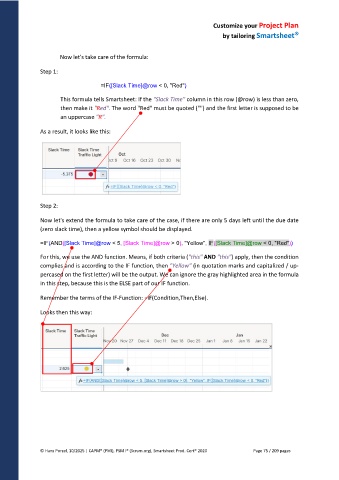
As a result, it looks like this:
Step 2:
Now let's extend the formula to take care of the case, if there are only 5 days left until the due date
(zero slack time), then a yellow symbol should be displayed.
=IF(AND([Slack Time]@row < 5, [Slack Time]@row > 0), "Yellow", IF([Slack Time]@row < 0, "Red"))
For this, we use the AND function. Means, if both criteria ("this" AND "this") apply, then the condition
complies and is according to the IF function, then "Yellow" (in quotation marks and capitalized / up-
percased on the first letter) will be the output. We can ignore the gray highlighted area in the formula
in this step, because this is the ELSE part of our IF function.
Remember the terms of the IF-Function: =IF(Condition,Then,Else).
Looks then this way:
© Hans Porzel, 10/2025 | CAPM® (PMI), PSM I® (Scrum.org), Smartsheet Prod. Cert® 2020 Page 75 / 209 pages

