


Page 76 - Customize-Project-Plan-by-tailoring-Smartsheet
P. 76
Customize your Project Plan
by tailoring Smartsheet
Step 3:
Now the formula has to be further boxed / nested, so that the green symbol will also appear.
=IF([Slack Time]@row > 5, "Green", IF(AND([Slack Time]@row < 5, [Slack Time]@row > 0), "Yellow",
IF([Slack Time]@row < 0, "Red")))
And again, we box / nest with a further IF function. The condition gets defined, that if in the "slack
time" column, in this row (@row), the value is greater than 5 (please note that yellow is a value be-
tween 0 and 5, so we continue with greater than 5 in need) that then "green" (again with quotation
marks and again with the first letter (G...) capitalized/upper-cased) will appear.
Here's the final formula again, but without the gray highlighted colored areas:
=IF([Slack Time]@row > 5, "Green", IF(AND([Slack Time]@row < 5, [Slack Time]@row > 0), "Yellow",
IF([Slack Time]@row < 0, "Red")))
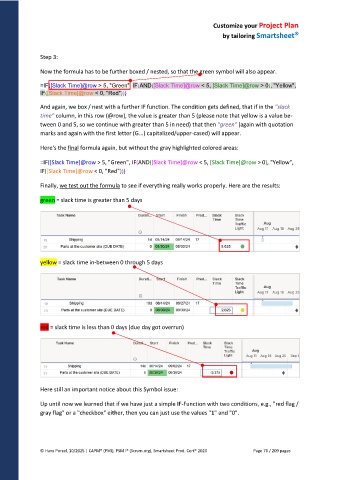
Finally, we test out the formula to see if everything really works properly. Here are the results:
green = slack time is greater than 5 days
yellow = slack time in-between 0 through 5 days
red = slack time is less than 0 days (due day got overrun)
Here still an important notice about this Symbol issue:
Up until now we learned that if we have just a simple IF-Function with two conditions, e.g., "red flag /
gray flag" or a "checkbox" either, then you can just use the values "1" and "0".
© Hans Porzel, 10/2025 | CAPM® (PMI), PSM I® (Scrum.org), Smartsheet Prod. Cert® 2020 Page 76 / 209 pages

