


Page 99 - Customize-Project-Plan-by-tailoring-Smartsheet
P. 99
Customize your Project Plan
by tailoring Smartsheet
32. Convert to Column Formula
32.1. Convert to Column Formula
We also encountered this feature already further
up. Usually when you like to copy a formula down
with the mouse, then you act as you would work in
the spreadsheet software Microsoft Excel ; just
pick the cell at the right low corner and then drag it
down to copy through this way the formula.
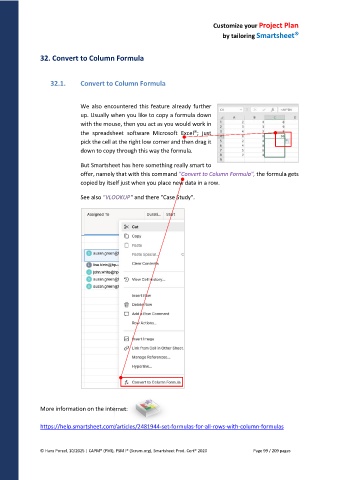
But Smartsheet has here something really smart to
offer, namely that with this command "Convert to Column Formula", the formula gets
copied by itself just when you place new data in a row.
See also "VLOOKUP" and there "Case Study".
More information on the internet:
https://help.smartsheet.com/articles/2481944-set-formulas-for-all-rows-with-column-formulas
© Hans Porzel, 10/2025 | CAPM® (PMI), PSM I® (Scrum.org), Smartsheet Prod. Cert® 2020 Page 99 / 209 pages

