


Page 94 - Customize-Project-Plan-by-tailoring-Smartsheet
P. 94
Customize your Project Plan
by tailoring Smartsheet
Since we only have the formula in one cell so far, we would either have to copy it with the mouse
down, like you are used in Microsoft Excel , or better yet, we would convert the formula into a so-
called "Column Formula".
This is fairly easily to process by simply clicking on the cell containing the formula (not double-clicking
on the formula!) and then right-clicking and choosing "Convert to Column Formula".
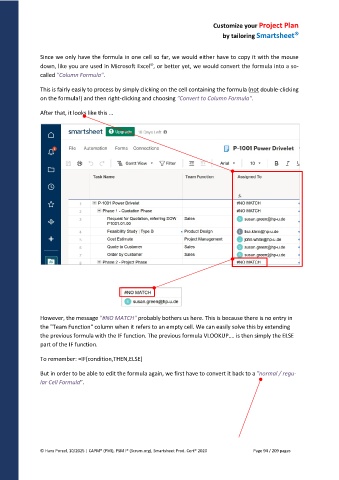
After that, it looks like this ...
However, the message "#NO MATCH" probably bothers us here. This is because there is no entry in
the "Team Function" column when it refers to an empty cell. We can easily solve this by extending
the previous formula with the IF function. The previous formula VLOOKUP…. is then simply the ELSE
part of the IF function.
To remember: =IF(condition,THEN,ELSE)
But in order to be able to edit the formula again, we first have to convert it back to a "normal / regu-
lar Cell Formula".
© Hans Porzel, 10/2025 | CAPM® (PMI), PSM I® (Scrum.org), Smartsheet Prod. Cert® 2020 Page 94 / 209 pages

