


Page 100 - Customize-Project-Plan-by-tailoring-Smartsheet
P. 100
Customize your Project Plan
by tailoring Smartsheet
33. Insert Image
33.1. Insert Image
Sometimes it makes sense to place and show an image in a cell.
CASE STUDY
Concerning our case study, we would like to display some pictures of our Team. To do this, we add a
new column, called "Picture", with the column type "Text/Number", at the sheet "Team".
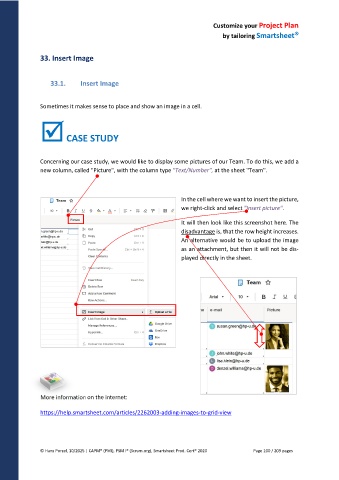
In the cell where we want to insert the picture,
we right-click and select "Insert picture".
It will then look like this screenshot here. The
disadvantage is, that the row height increases.
An alternative would be to upload the image
as an attachment, but then it will not be dis-
played directly in the sheet.
More information on the internet:
https://help.smartsheet.com/articles/2262003-adding-images-to-grid-view
© Hans Porzel, 10/2025 | CAPM® (PMI), PSM I® (Scrum.org), Smartsheet Prod. Cert® 2020 Page 100 / 209 pages

