


Page 87 - Customize-Project-Plan-by-tailoring-Smartsheet
P. 87
Customize your Project Plan
by tailoring Smartsheet
29.1.2. VLOOKUP
• Corresponds to the Microsoft Excel function VLOOKUP.
• VLOOKUP pulls specific data from a specific column from a certain data area / table.
• Example: Pull the name of a team member from a list, called "Team Matrix", where you have also
the department name where the team member is located.
• Preparation before using the VLOOKUP function: creating a data area / table (the data source)
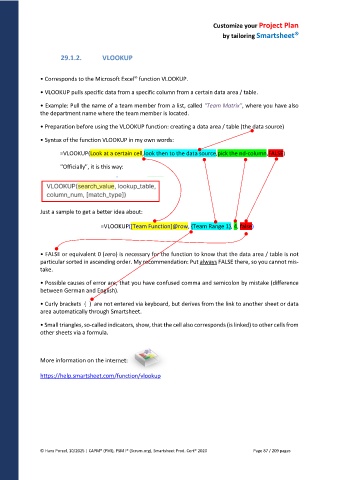
• Syntax of the function VLOOKUP in my own words:
=VLOOKUP(Look at a certain cell,look then to the data source,pick the nd-column,FALSE)
"Officially", it is this way:
Just a sample to get a better idea about:
=VLOOKUP([Team Function]@row, {Team Range 1}, 4, false)
• FALSE or equivalent 0 (zero) is necessary for the function to know that the data area / table is not
particular sorted in ascending order. My recommendation: Put always FALSE there, so you cannot mis-
take.
• Possible causes of error are, that you have confused comma and semicolon by mistake (difference
between German and English).
• Curly brackets { } are not entered via keyboard, but derives from the link to another sheet or data
area automatically through Smartsheet.
• Small triangles, so-called indicators, show, that the cell also corresponds (is linked) to other cells from
other sheets via a formula.
More information on the internet:
https://help.smartsheet.com/function/vlookup
© Hans Porzel, 10/2025 | CAPM® (PMI), PSM I® (Scrum.org), Smartsheet Prod. Cert® 2020 Page 87 / 209 pages

