


Page 81 - Customize-Project-Plan-by-tailoring-Smartsheet
P. 81
Customize your Project Plan
by tailoring Smartsheet
CASE STUDY
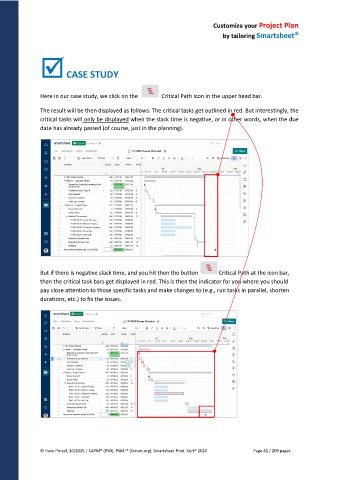
Here in our case study, we click on the Critical Path icon in the upper head bar.
The result will be then displayed as follows: The critical tasks get outlined in red. But interestingly, the
critical tasks will only be displayed when the slack time is negative, or in other words, when the due
date has already passed (of course, just in the planning).
But if there is negative slack time, and you hit then the button Critical Path at the icon bar,
then the critical task bars get displayed in red. This is then the indicator for you where you should
pay close attention to those specific tasks and make changes to (e.g., run tasks in parallel, shorten
durations, etc.) to fix the issues.
© Hans Porzel, 10/2025 | CAPM® (PMI), PSM I® (Scrum.org), Smartsheet Prod. Cert® 2020 Page 81 / 209 pages

