


Page 108 - Customize-Project-Plan-by-tailoring-Smartsheet
P. 108
Customize your Project Plan
by tailoring Smartsheet
37. Parent automatically colored
37.1. Parent Row automatically colored
Of course, it would be nice if we could assign a certain color to a parent task, so it would immediately
catch our eye. This can also be automated. We can do this with the following steps:
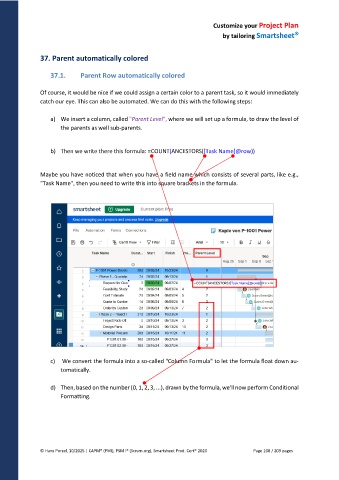
a) We insert a column, called "Parent Level", where we will set up a formula, to draw the level of
the parents as well sub-parents.
b) Then we write there this formula: =COUNT(ANCESTORS([Task Name]@row))
Maybe you have noticed that when you have a field name which consists of several parts, like e.g.,
"Task Name", then you need to write this into square brackets in the formula.
c) We convert the formula into a so-called "Column Formula" to let the formula float down au-
tomatically.
d) Then, based on the number (0, 1, 2, 3, ...), drawn by the formula, we'll now perform Conditional
Formatting.
© Hans Porzel, 10/2025 | CAPM® (PMI), PSM I® (Scrum.org), Smartsheet Prod. Cert® 2020 Page 108 / 209 pages

